





New in SketchUp 2027: Procedural Modelling, Hatching and a Faster LayOut!
Faster iteration, faster documentation and the same experience on Mac and Windows. Here are all the features!

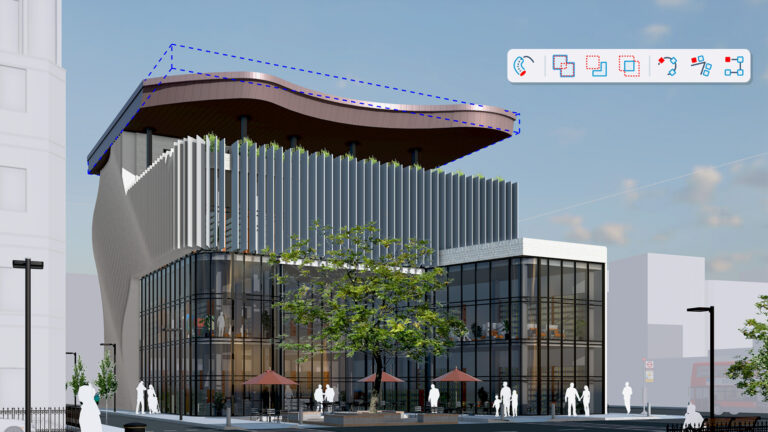
Imagine coming up with a brilliant idea at the last minute and watching your 3D model adapt effortlessly! With SketchUp 2027, you can respond to fresh insights and last-minute changes in no time, without having to start from scratch. Curious to see what’s new? We’ll walk you through the key features and show you how to put them to work, making your design process smoother, smarter and more efficient!
What’s new in SketchUp 2027?
SketchUp 2027 is built around three themes: faster iteration through procedural modeling, faster documentation in SketchUp and LayOut, and one consistent interface on macOS and Windows. On top of that, section cuts get real hatch patterns, and interoperability with CAD, BIM and 3D formats has been significantly improved. Here is everything at a glance.
Procedures: non-destructive modelling with the tools you already know
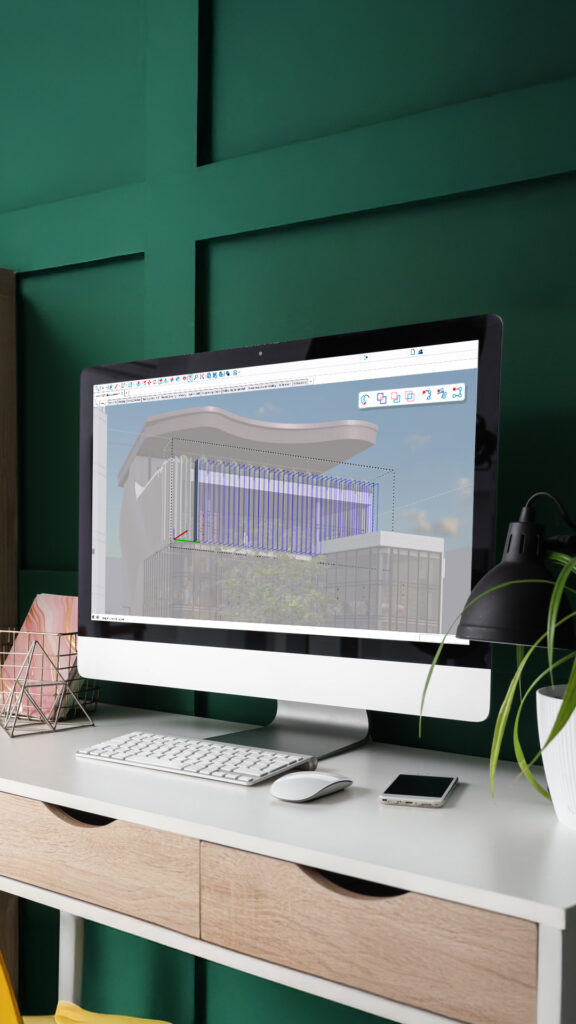
The biggest change in SketchUp 2027 is native, non-destructive (“procedural”) modeling. With the new Procedural Tools, you build on workflows you already know. What you create is a procedural component that you edit, nest and reuse afterward like any other component: change the original drawing or adjust values in Entity Info, and there is nothing to rebuild. You find the tools in the Procedures menu or on the Procedural Tools toolbar (View > Toolbars), which you can dock like any other toolbar.
Copy Along: Follow Me, but for objects
Copy Along places copies of groups or components along a path with adjustable spacing. You choose from three placement modes: Entire Path (along the whole path), Each Segment (on every segment) and On Corners (at the corners of the path). Select the component, move along the edge where the copies should go and click: your procedural component is in place. Double-click it to edit the original component or the path afterward. In Entity Info, you also set the distribution (by count, distance or gap), the orientation (Stairlike or Roadlike) and, for Each Segment, the margin (absolute or relative). Think fences, balusters, deck boards or windows across a facade, with no path-array extension needed.
Follow Me with multiple profiles
Follow Me now supports multiple extrusion profiles within one group or component and retains existing materials and attributes. A multi-layer wall with structure, insulation and finish comes out of one sweep, and because the result is procedural, you can still change the path or a profile later.
Procedural Solid Tools
A selection of the familiar Solid Tools is now procedural. They work with Solid Collections (standard groups or components containing only nested solids, with no extra setup) and preserve the target’s original hierarchy. Tags, classifications and metadata are preserved wherever possible, so an IFC-classified wall stays classified after you cut an opening into it.
Controls and Explode to Inputs
You find the settings of procedural tools in Entity Info. Don’t need the procedure anymore? Choose “Explode to Inputs” in the context menu: the procedural component goes away and the geometry stays in your model. More procedures are in development for future releases!
AutoFit Live Components: drag, drop, done
AutoFit is a new, interactive placement method: drag a Live Component onto a face in your model and it configures itself. While you drag, SketchUp highlights the face under your cursor as a preview of where the component will land. Once you drop it, it adapts its size and shape to the face. That works on any flat face, including faces inside other components or groups, without opening, editing or exploding them. While placing, you also set the origin and alignment direction, for example the direction of deck boards or a tile pattern.
Section hatching: show what it’s made of
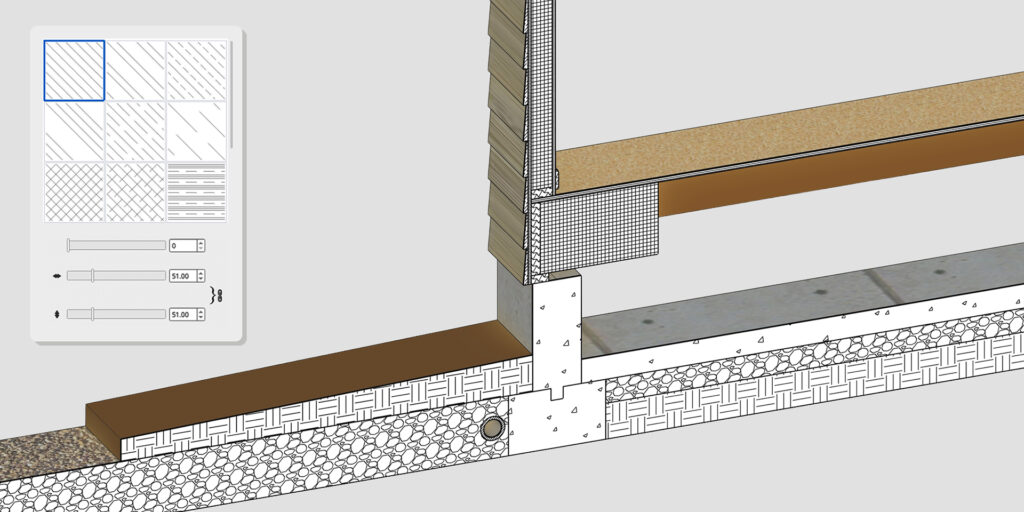
Until now, a section cut in SketchUp was a flat, uniformly colored face. With Section Fill Hatch Patterns, the cut face of a solid object gets a real hatch pattern, so you represent the layers inside an object diagrammatically. A hatch consists of adjustable vector lines with a background color, or a tileable raster image. You manage them in four places:
- Hatch Patterns panel: view, import, create and manage hatches. SketchUp includes a default library (.skh). You import your own .skh files, images or .PAT files, one pattern per .PAT file.
- Materials: link a hatch to a material through the Section Fill option. Cut a solid group or component painted with that material and you see the linked hatch. Paint whole groups or components where possible, one material per component.
- Entity Info: set the hatch of a group or component independently of a material. It takes precedence over a material-linked hatch.
- Styles panel: switch Section Fill on or off (off hides all section fills) and use “Override Section Fill by Style” for one uniform fill from the style, like classic section fills. If a group or component has no hatch, the style’s fill applies.
Faster documentation in LayOut and SketchUp
Less waiting, more refining. SketchUp 2027 tackles three documentation bottlenecks.
Faster Hidden Line Rendering (HLR)
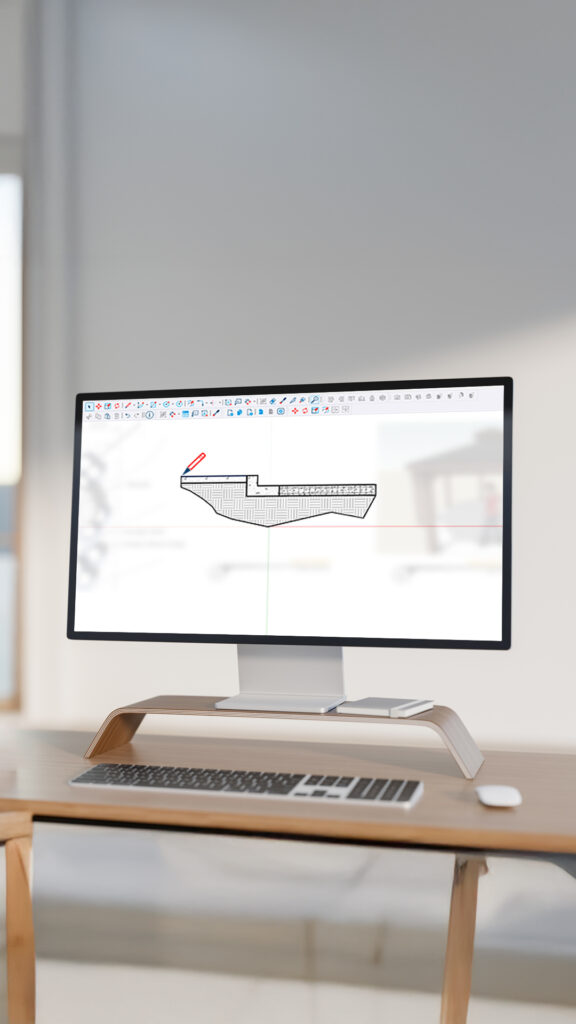
The overhauled HLR engine generates vector linework for complex models far faster, while keeping or improving drawing fidelity in LayOut. In SketchUp, you notice the gain mostly with graphics-intensive imports. The new engine is a SketchUp Public Labs feature that is enabled by default. If it causes problems, switch back to the classic engine in the preferences (Graphics in SketchUp, Performance in LayOut).
Paperless drawing in LayOut
With Enter Draw Mode in the Scaled Drawing panel, you start a paperless session. You draw to scale (1:1) with real-world coordinates on a canvas with red and green axes from 0,0, just like in SketchUp. You can adjust paper color and grid. With Exit Draw Mode, LayOut converts your work into a group at ¼” = 1′ (imperial) or 1:50 (metric), and you can change that scale before or after. Select a SketchUp viewport and the scale is already filled in, so you can start detailing straight on top of the model. Hide and Fade in the same panel give you even more control over your drawing.
Image adjustments right in LayOut
The new Image Adjustments panel offers non-destructive controls for opacity, brightness and contrast, and hue and saturation (including full desaturation) on raster or hybrid renders and image files. A reset button per setting or “Reset All” takes you back to the original. A detour through an external image editor is no longer needed.
One interface for Windows and macOS
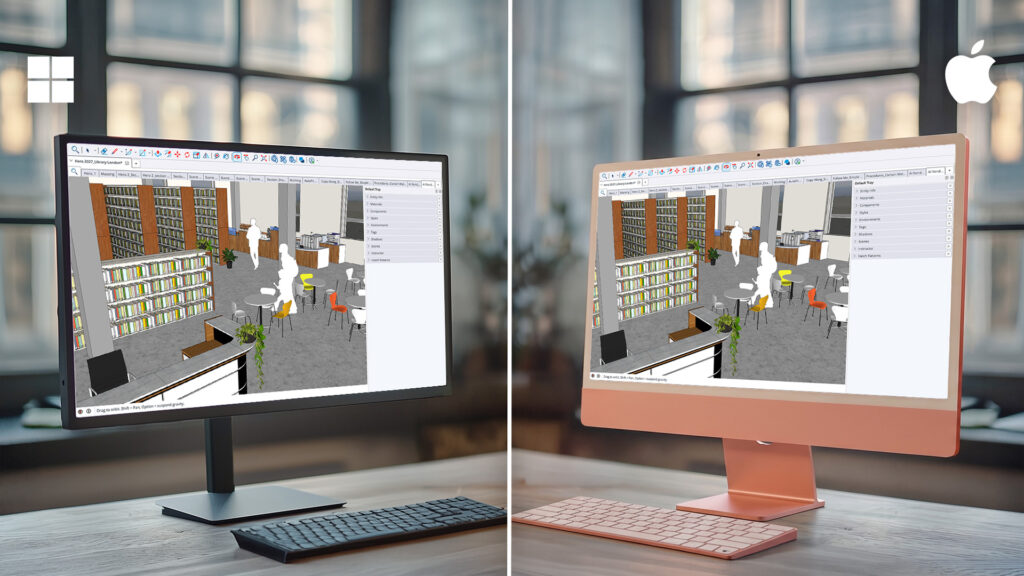
SketchUp and LayOut now share the same interface on Windows and macOS, based on how SketchUp works on Windows. Mac users get dockable toolbars, dockable trays containing multiple panels and a revised Materials interface and library. On both platforms, the Ruby Console is dockable and the toolbars have a fresh look.
Multiple models in one session
Open and edit multiple models or documents in the same session of SketchUp or LayOut, using tabs and floating model windows. Hover over a tab for a preview, reorder the tabs, or drag a tab out (or double-click it) for a floating window, for example on a second display. Toolbars and panels stay in your main workspace and also work for the floating window. Close the last model and SketchUp stays open with the Welcome Window. Scene tabs have been updated too: you create a scene with one click, show or hide the scene tabs per model and see a preview on hover.
More smart improvements
Outliner: sort by tags
In the Outliner, “Sort By” lets you choose between Hierarchy (default) and Tags. Sorting by tags also works with IFC classifications: classified components appear under their definition, and components without a tag or classification appear under Untagged or Unclassified.
Touchpad support
Windows and macOS get improved touchpad support with additional modifiers. Move one finger across the trackpad while holding Control+Alt (CMD on macOS) to orbit, or Shift+Control+Alt (CMD on macOS) to pan.
Coordinate reference systems (CRS)
Add Location now supports CRS. Import your CRS or calibration file, set the Project Base Point with Easting and Northing values and SketchUp calculates elevation automatically (with manual adjustment possible). SketchUp also corrects for True North, so you can model next to the internal origin and keep real-world geographic context.
Scan Essentials (Windows)
Scan Essentials gets the editable SDB (ScanDataBase) project database instead of the read-only RWP, with non-destructive editing, classification and station management. You can now also import .RCP, .TDX and Gaussian Splatting (.PLY) files and automatically classify point clouds for indoor and outdoor scenes.
Better interoperability with CAD, BIM and 3D
DWG and DXF: on import, you control mesh detail with Angular Deviation, Chordal Tolerance and Max Edge Length (or pick a preset). You choose how each type of annotation is handled: text (contours only, filled meshes, native SketchUp text or none), dimensions (contours only or native) and hatches (linework or none). With Import Metadata, each element becomes a component, block metadata is classified as IfcAnnotation and the original CAD attributes land in the CAD_Metadata property set. On export, you choose between Smooth (SubD, for AutoCAD versions after 2010) and Flat-faceted (Polyface).
IFC and TrimBIM: the TrimBIM importer and exporter now match the capabilities of IFC, so you choose based on performance rather than on what you’re willing to give up. Reinforcement (IfcReinforcingBar and IfcReinforcingMesh) now appears in your viewport and the Outliner on import, and lamps and outlets (IfcLamp and IfcOutlet) are exported as well. On import, you choose whether tags come from IFC classes, IFC layers or aren’t created at all. If your model is geolocated with a CRS, SketchUp automatically exports the CRS and positioning information (IfcProjectedCRS and IfcMapConversion).
USD: besides .usdz, SketchUp now also supports .usd, .usda and .usdc. On export, you choose the Feature Level (Normal or Round Trip) and the Texture Level (Normal or Baked, for better fidelity but a larger file). On import, you set the Up Axis (Auto, Y or Z), the units and edge visibility.
What does SketchUp 2027 mean for your field?
Architects run walls, facade elements and sun-shading fins along a path, adjust them afterward and give section cuts more detail with hatching. Interior designers edit trim and cladding non-destructively and fine-tune the color, brightness and contrast of their renders right in LayOut. In construction, you model MEP runs and penetrations in an adjustable way and draft full-scale logistics plans without page constraints. In retail, you lay out shelving and fixtures along a path with Copy Along, and in urban and landscape design, you distribute street furniture, planting and paving along a path. Adjust the path and the rest follows.
Ready to get started?
SketchUp 2027 is available today to all SketchUp Pro and Studio subscribers, including Pro Scan, Pro Civil Contractor, Pro Advanced and Studio for education. SketchUp Go subscribers benefit too, with access to the procedural tools and AutoFit Live Components. New to SketchUp? Give it a try! Already a subscriber? Update today and discover what the latest features can do for your projects. Ready to get started? Get in touch with us or one of our resellers. We’ll be happy to help you get up and running!