






Chaos Veras 4.7 update: edit videos with Gemini Omni!
Chaos’s AI visualization tool Veras now lets you rewrite existing footage with a simple prompt, and adds support for Revit 2027!


Veras 4.7 is the latest release of Chaos Veras, Chaos’s AI-powered ideation and visualisation tool for architects and designers. Where you could previously only generate new videos, this version lets you edit existing videos too, thanks to the new Gemini Omni model. On top of that, you get connected video playback, copy and paste for images, and support for Revit 2027.
What can you do with Gemini Omni in Veras 4.7?
The new Gemini Omni model takes an existing video and your prompt, and reshapes the footage while keeping the original’s camera movement and motion intact. Think of changing materials, the season, the time of day, or the landscaping, without having to render everything again from scratch.
Here’s how it works in practice:
- Video-to-video editing: your prompt reshapes existing footage instead of starting from zero
- Add up to 4 reference images to steer materials, objects, or style
- Gemini Omni also generates on its own: text-to-video with no source footage, or image-to-video from any source image
- Produces 10-second clips at 720p while in preview, with the credit cost shown right in the dropdown
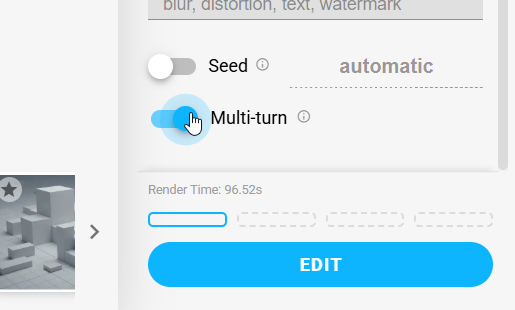
- A conversational edit toggle lets you build on a previous Gemini Omni result, so follow-up tweaks stay consistent with the changes you made before
Just pick a video from your render strip, or upload your own footage, describe the change you want, and Veras renders the result.
Play multiple videos as one continuous sequence
Select several videos in Veras 4.7, and they now play automatically as one continuous, looping sequence, in the order you picked them. It’s a great way to review a storyboard of separate clips as if it were a single animation. Every thumbnail shows a scrub line, so you can see exactly where playback is and drag to any moment. An annoying stutter that used to show up while scrubbing through many videos has also been fixed, making playback noticeably smoother.
Copy and paste images
The clipboard now works both ways in Veras 4.7:
- Paste in: press Ctrl+V (Cmd+V on Mac) to paste an image from anywhere straight into Veras as your source image
- Copy out: copy any render to the clipboard and paste it straight into an email, chat message, or presentation, without saving a file first
Revit 2027 support
Veras now runs in Revit 2027. The Windows installer automatically detects which Revit versions you have installed, so there’s nothing to configure yourself.
More improvements in Veras 4.7
Alongside the headline features, this release also brings a set of smaller improvements and bug fixes:
- A clear error message when you run out of credits, instead of a generic network error, and the monthly credit reset date now displays more reliably
- Deleted renders disappear from the gallery instantly, with no more delay
- Improved keyboard handling in the gallery: the Delete key no longer also removes the selected render in your workspace, and Esc no longer closes the expanded view
- Smoother recovery from an expired login session, without endless loading errors in the gallery
- Source image history now includes synced images from your model, not just manual uploads
- Live preview for the Auto source, including your sketch overlays in real time
- Automatic captures now respect the chosen aspect ratio
- Video playback automatically falls back to WebM in environments without MP4 support
- Renders in Rotate mode automatically reopen in Rotate
- A more stable guided walkthrough, with no more stuck overlays
- Fixed a bug where screens briefly went blank on startup on some multi-monitor setups
- An improved style chip editing panel, with a minimum name length and clearer feedback when saving a preset is blocked
- Faster, more reliable render delivery through cloud storage
Frequently asked questions about Veras 4.7
- What is Gemini Omni in Veras? Gemini Omni is the new AI model in Veras 4.7 that lets you edit existing videos based on a text prompt, while keeping the original camera movement and motion.
- Does Veras 4.7 support Revit 2027? Yes, Veras 4.7 works fully with Revit 2027. The Windows installer automatically recognises your installed Revit versions.
- Can I use my own videos with Gemini Omni in Veras 4.7? Yes, you can either pick a video from your own render strip or upload your own footage as the source for Gemini Omni.
- Where can I download Veras 4.7? Veras 4.7 is available as a web app and as a download for Windows (SketchUp, Revit, Rhino, Archicad, Vectorworks, Autodesk Forma and AllPlan) and Mac (SketchUp, Vectorworks and ArchiCAD).
Getting started with Veras 4.6
With this update, Chaos once again takes a major step in bringing AI and architectural visualisation together. From a first sketch idea to a video you can still rewrite afterwards with a simple prompt: it can all now happen within one and the same environment, with no hassle from external video tools. Ready to get started with Veras 4.7 yourself? You can download the update straight from your personal account on the Chaos.com website, or directly through the prompt in your software.
Not working with Chaos Veras yet, and want to try it for free first? Request your 14-day trial via the vendor’s website.
Have questions about the update, or want to know what Veras could mean for your workflow? Our team at Design8 is happy to help.